
Start finding and discovering recipes with Maison Foodie

Follow these simple steps to start finding and discovering recipes catered for you. Enjoy tastes from around the world!

1. Login to Maison Foodie

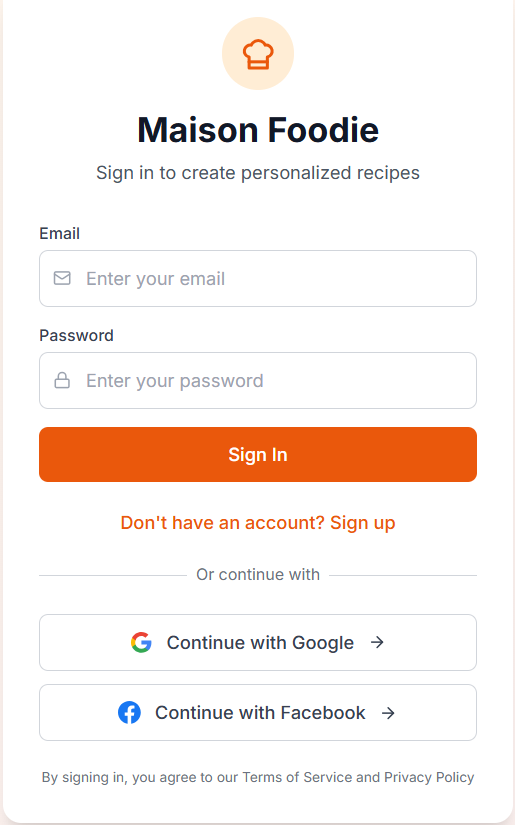
Click on "LET'S START" in the menu . You can sign up with either your Google account or your Facebook account. Alternatively, you can register with Maison Foodie and create your own account by clicking "Sign Up". Registering for a Maison Foodie account is required so that you can view past recipes that the Maison Foodie chef has created for you and to access other premium features.
2. Select Cuisine Type

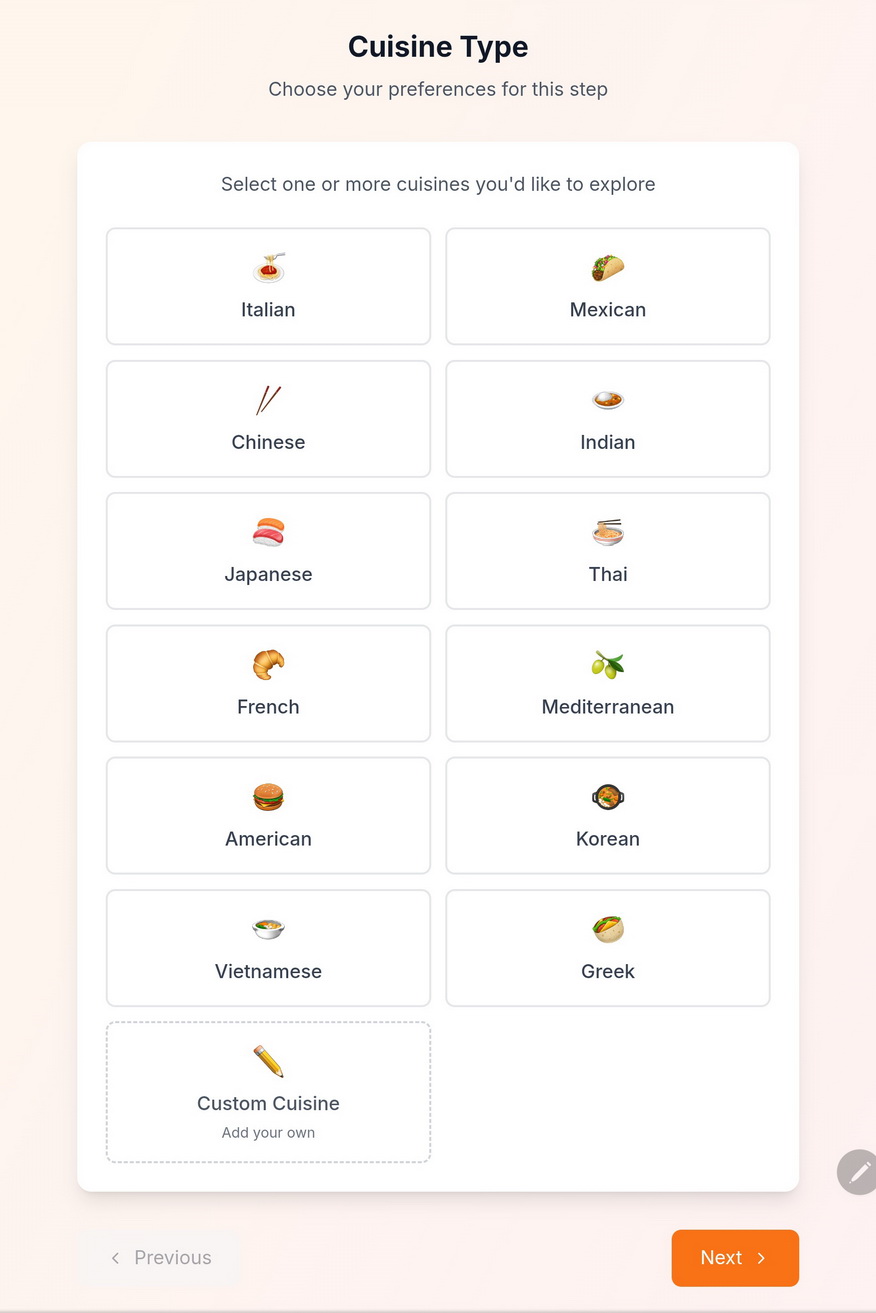
Explore the tastes of the world. Select the type of cuisine that you would like the Maison Foodie chef to find and create for you. If the cuisine type is not listed, use the "Custom" field and enter your preferred cuisine.
3. Select Your Recipe Type

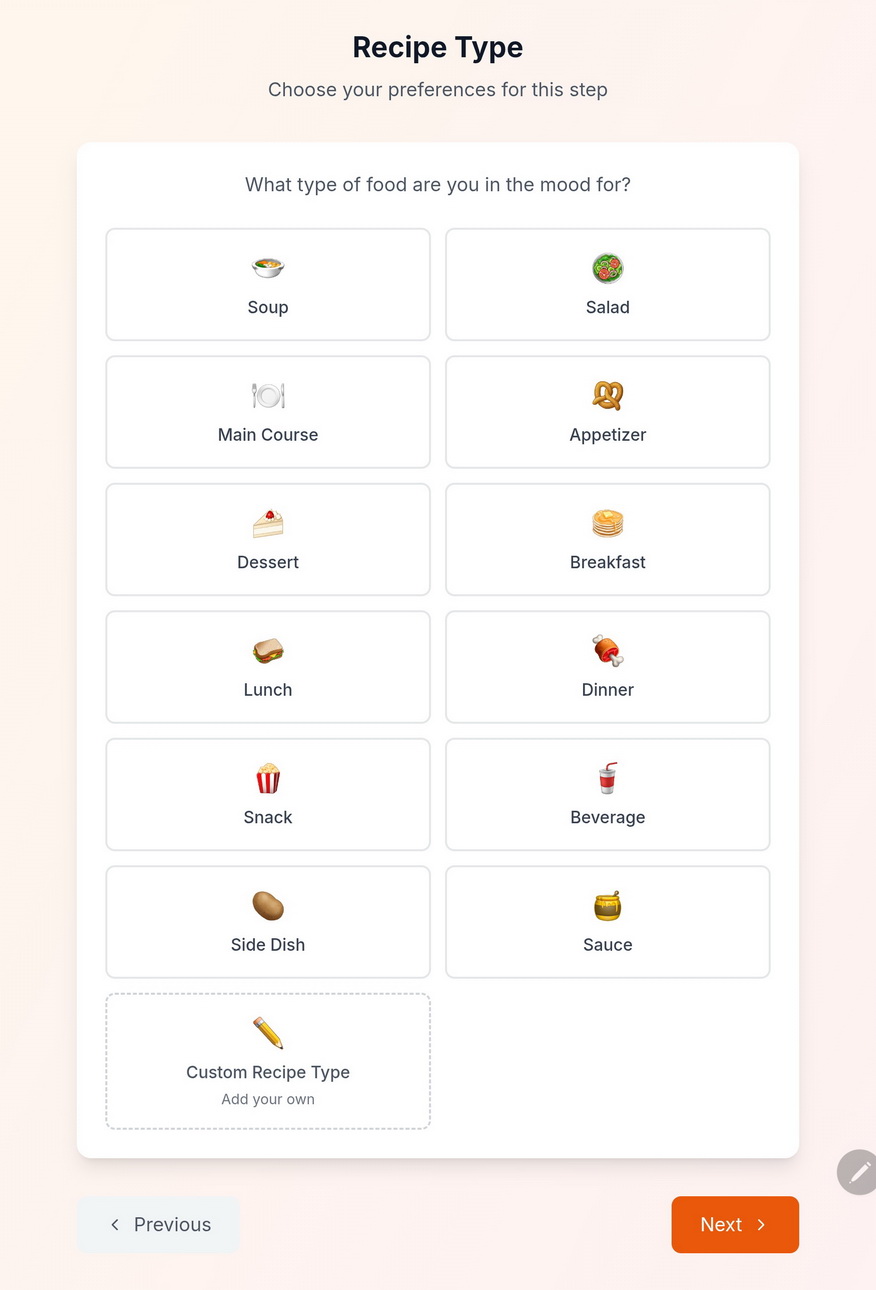
Select from a predetermine list of recipe types or use the "Custom" field and enter the type of recipe that you would like the Maison Foodie chef to find and create for you.
4. Select Your Dietary Preferences

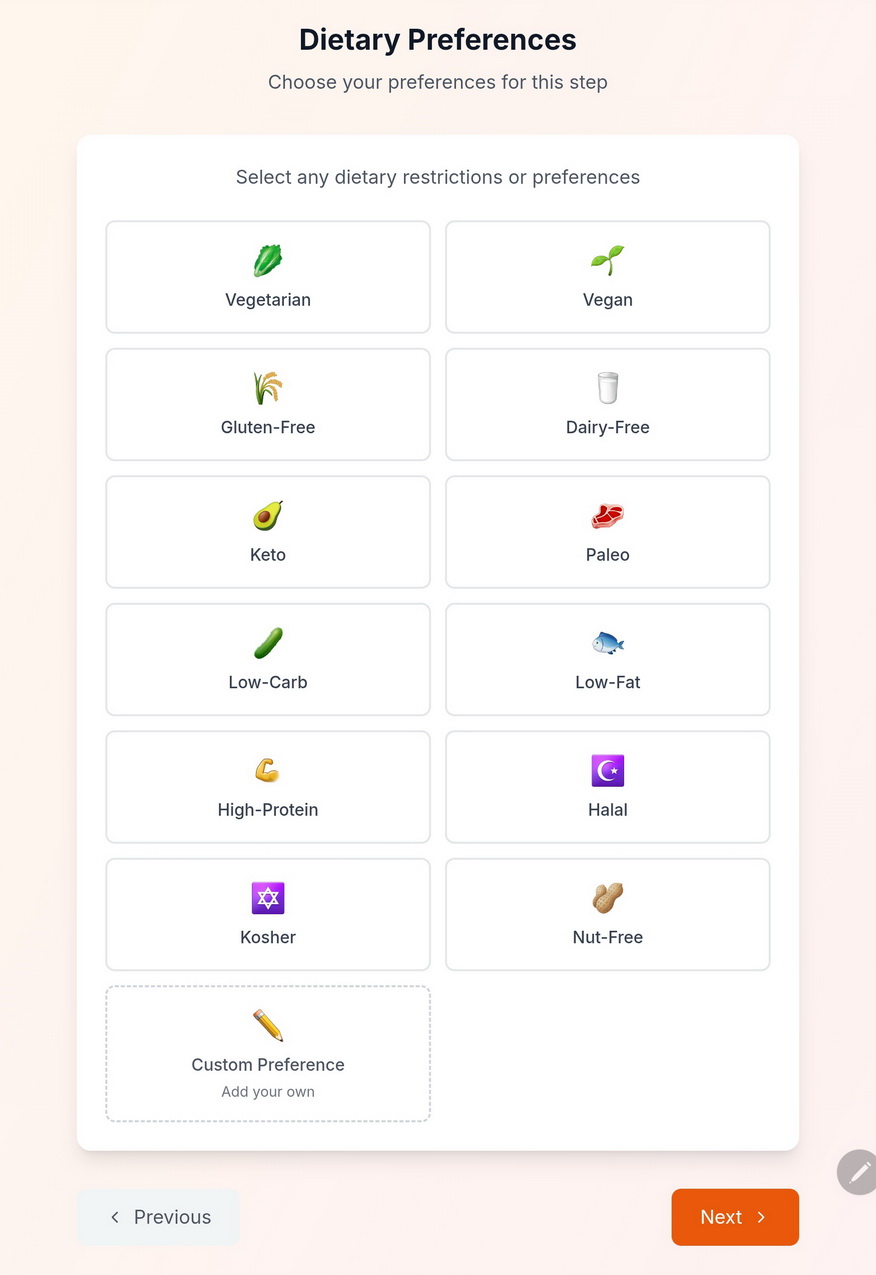
Select from a predetermined list of dietary preferences or use the "Custom" field and enter your dietary preferences. This step is optional. Click "Next" to proceed to the next step.
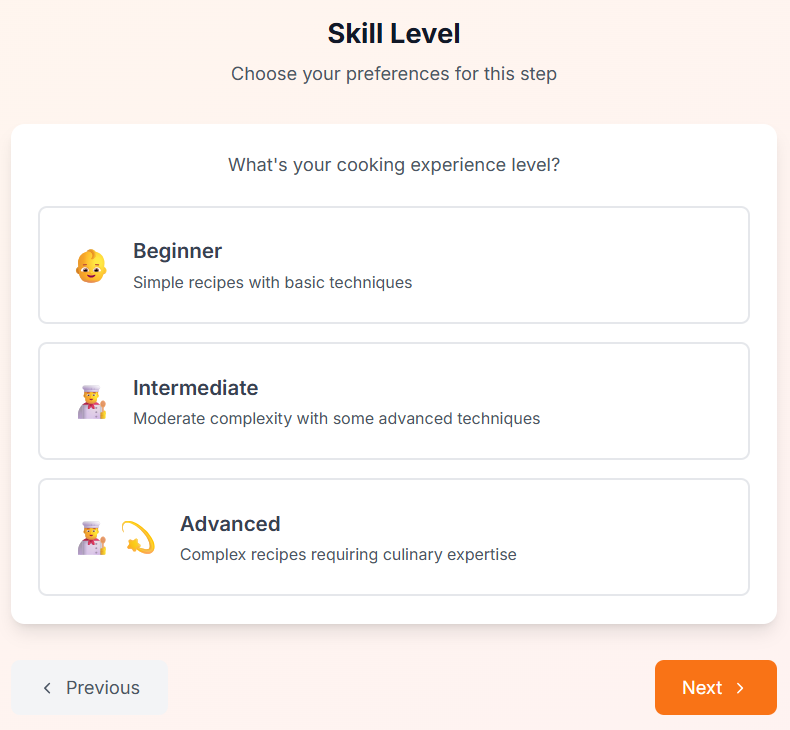
5. Skill Level

Select the level of cooking skill. This will help determine the complexity of the recipe that the Maison Foodie chef will find and create for you. This step is optional. Click "Next" to proceed to the next step.
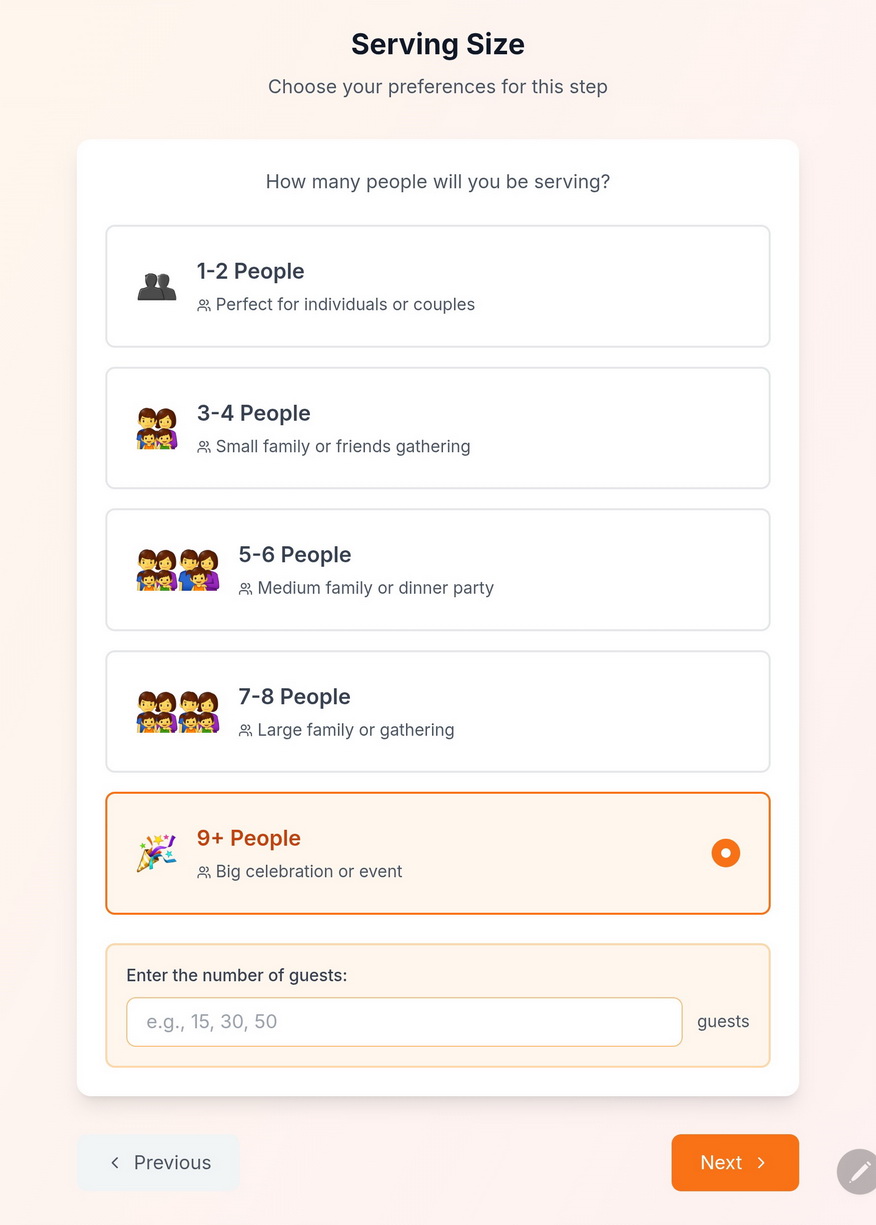
6. Serving Size

Select the serving size for the recipe. This will help the Maison Foodie chef determine the quantity of the ingredients needed for the serving size that you have selected.
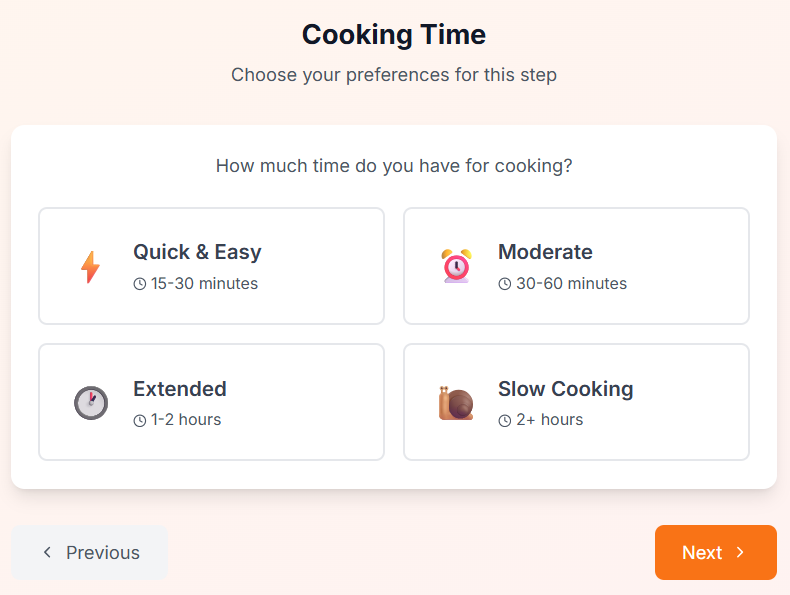
7. Preparation & Cooking Time

Select the amount of time you have available to prepare and cook the recipes that the Maison Foodie chef will find and create for you. This step is optional. Click "Next" to proceed to the next step.
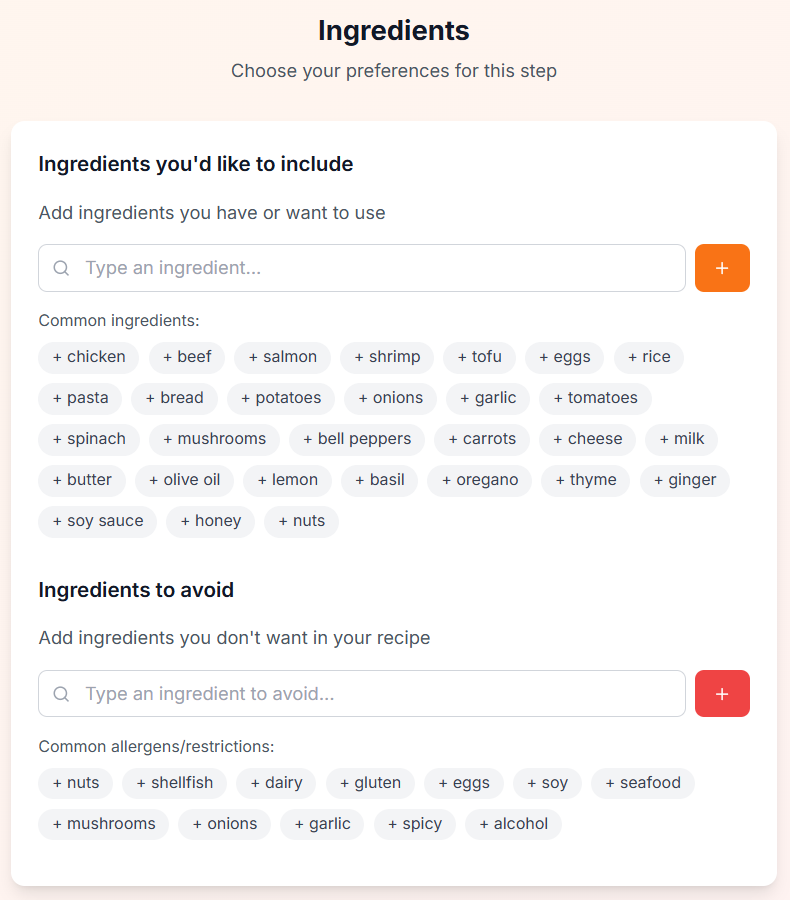
8. Ingredients

Please select the ingredients that you would like to include or exclude from the recipes that the Maison Foodie chef will find an create for you. Use the "Custom" fields to (i) add ingredients that you would like to include in the recipes; and/or (ii) to exclude ingredients that you do not want to be included in the recipes being created for you. This step is optional. **WHILE THE MAISON FOODIE CHEF WILL TRY ITS BEST TO ACCOMODATE ANY INGREDIENTS THAT YOU HAVE SELECTED TO BE EXCLUDED FROM THE RECIPES BEING GENERATED, THE MAISON FOODIE CHEF CANNOT GUARANTEE THAT THE RECIPES GENERATED WILL EXCLUDE ANY IDENTIFIED INGREDIENTS OR ACCOMODATE ANY DIETARY RESTRICTIONS. IF YOU HAVE ANY FOOD ALLERGIES OR DIETARY PREFERENCES, YOU SHOULD VERIFY ANY INGREDIENTS IDENTIFIED IN THE RECIPES PRIOR TO ANY USE OR RELIANCE OF THE RECIPES GENERATED AND PROVIDED TO YOU.
9. Generate Recipe

Click “Generate Recipe” and the Maison Foodie chef will start looking for and creating the recipe for you. To view past recipes created for you, click on the “My Recipe History” button.

Organize and Manage Recipes with Maison Foodie Recipe Books

Follow these steps to organize and manage your Maison Foodie recipes.

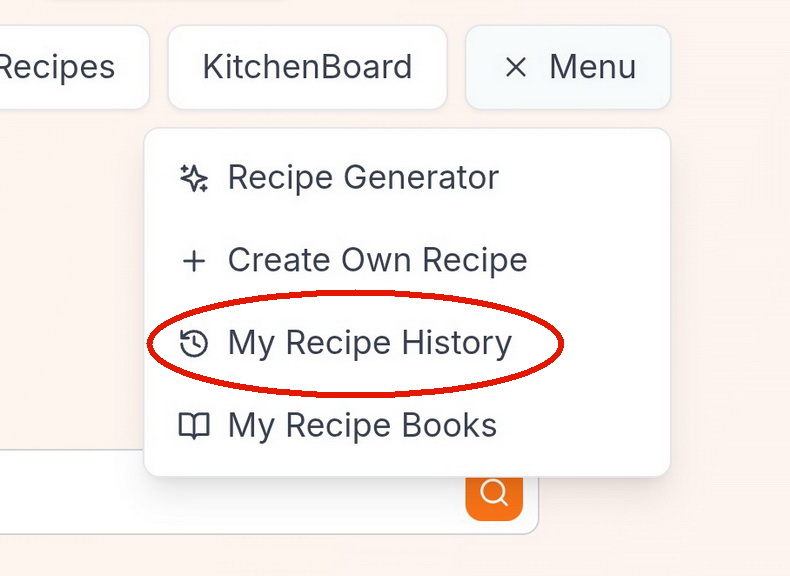
1. Click on "My Recipe History"

Click on the "Menu" button to access "My Recipe History"
2. Click on "Add to Book"

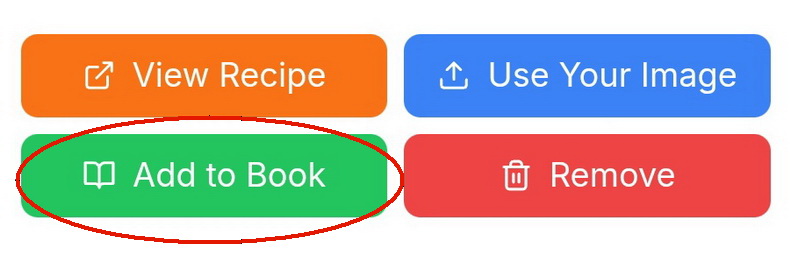
Under My Recipe History, find the recipe that you would like to add to your Recipe Book. Once you have found the recipe, click on "Add to Book".
3. Create Your Recipe Book

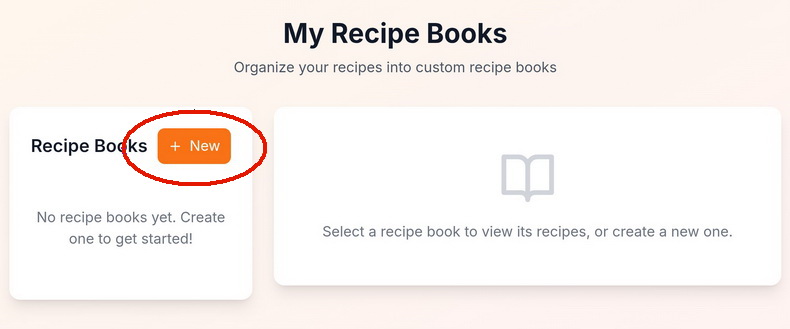
If you have not created any Recipe Books, you will be prompted to create your first Recipe Book. Click on the "+ New" button.
4. Name Your Recipe Book

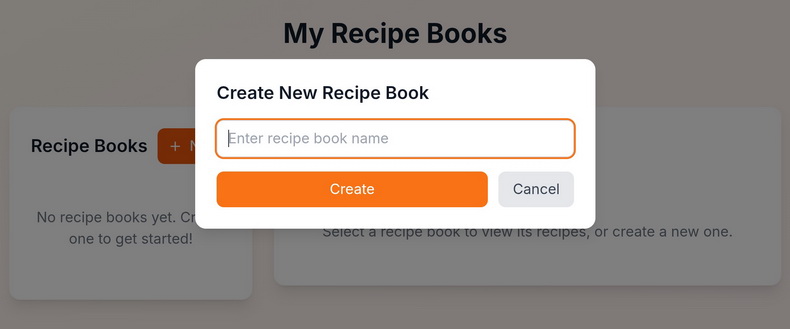
You will be prompted to name your Recipe Book. You can change the name of your Recipe Book(s) at any time after the Recipe Book was been created. Once you have created your Recipe Book, it will appear in the pane labelled "Recipe Books".
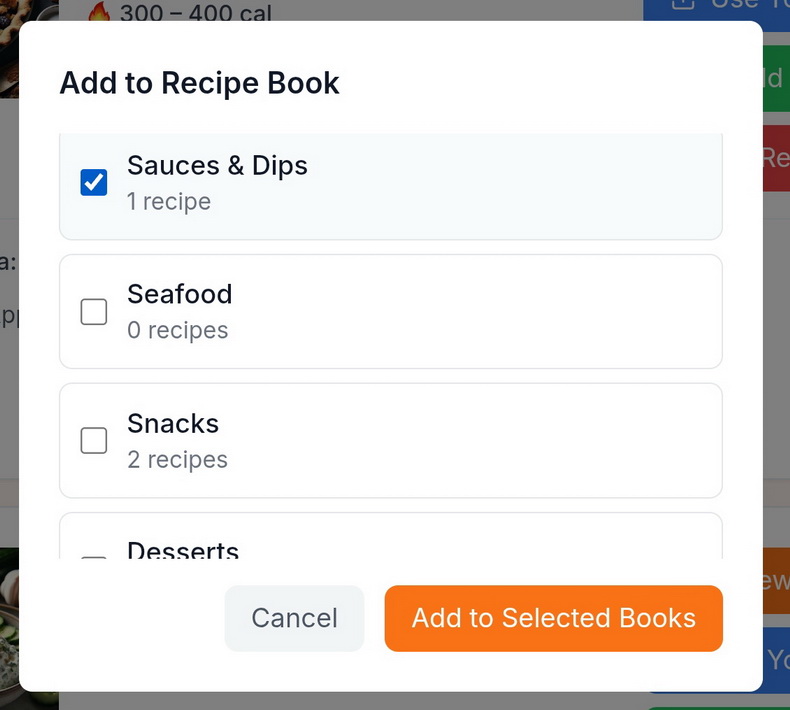
5. Add Your Recipe to a Recipe Book

Once a Recipe Book has been created, you will need to go back to "My Recipe History" and repeat the steps above. When you click on "Add to Book" for the applicable recipe, a list of available Recipe Books will be displayed. You can add the recipe to multiple Recipe Books.
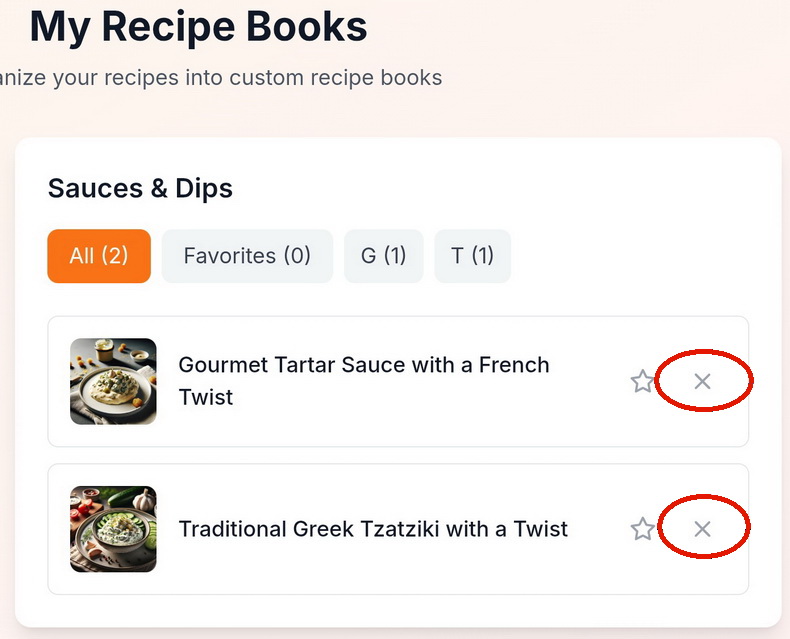
6. How to Remove a Recipe From a Recipe Book

If you would like to remove a recipe from a certain Recipe Book, simply select the applicable Recipe Book to find the recipe that you wish to remove. Once you have found the recipe that you would like to remove from the Recipe Book, click on the "X". Clicking on the "X" only removes the recipe from the applicable Recipe Book and does not actually delete or remove the recipe from Maison Foodie.
View Maison Foodie Recipes in Another Language

Follow these simple steps to start viewing Maison Foodie recipe content in the language of your choice.

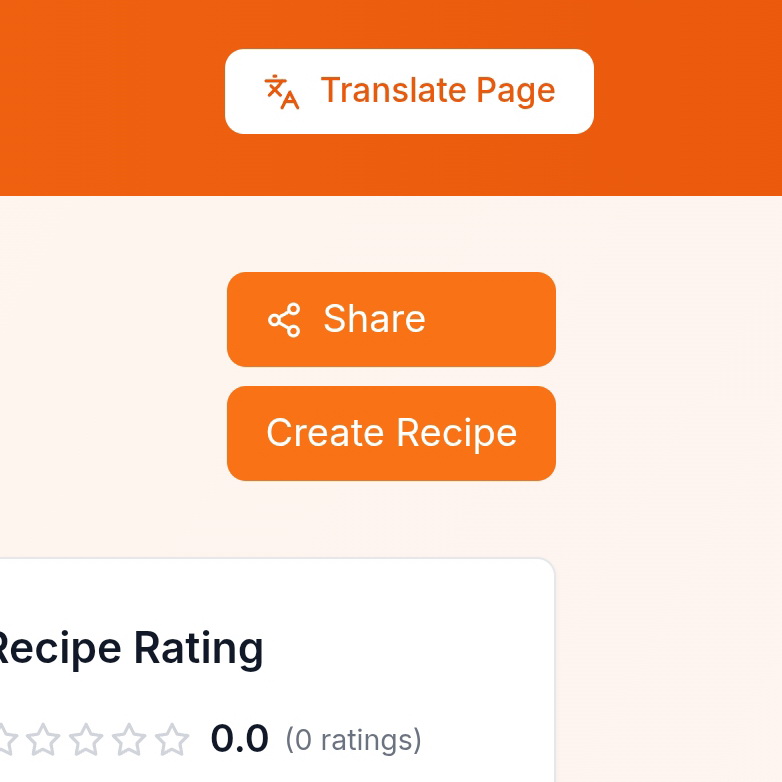
1. Click on the "Translate" Button

When viewing a recipe generated by Maison Foodie, click on the "Translate" button which is displayed in the top right corner of the recipe page.
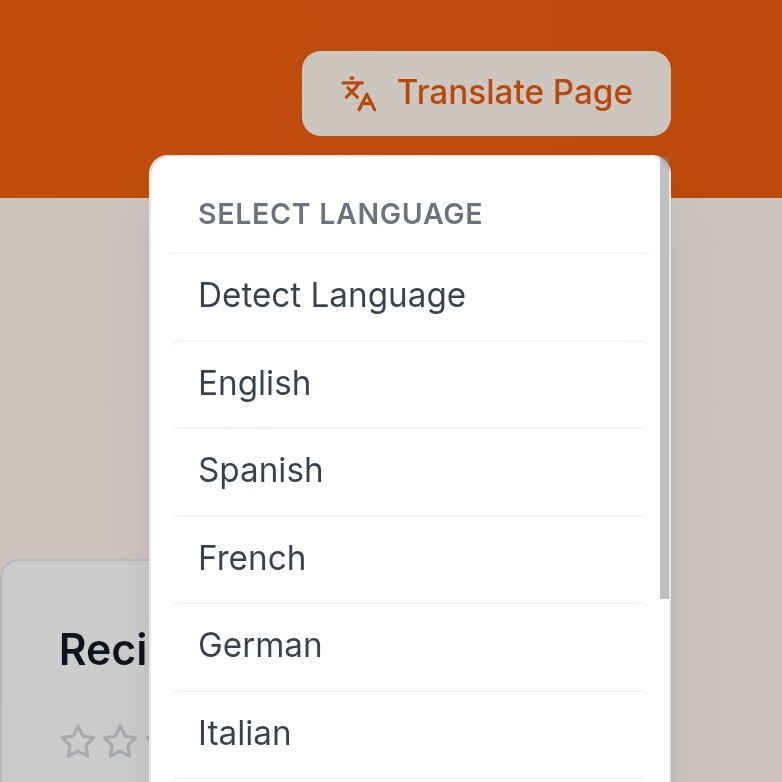
2. Select the Language

Scroll the list of available languages and select the language that you wish to translate the recipe content.
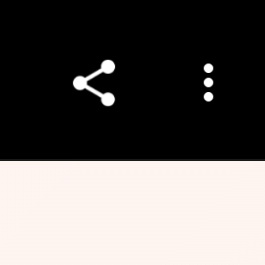
If the "Translate" button is not available, proceed with the following steps:

1. Click on the Menu

Click on the three (3) vertical dots or three (3) horizontal dots (depending on what web browser you are using) in the top right corner of the web browser user interface or in the top right corner of the mobile app user interface to open the menu.
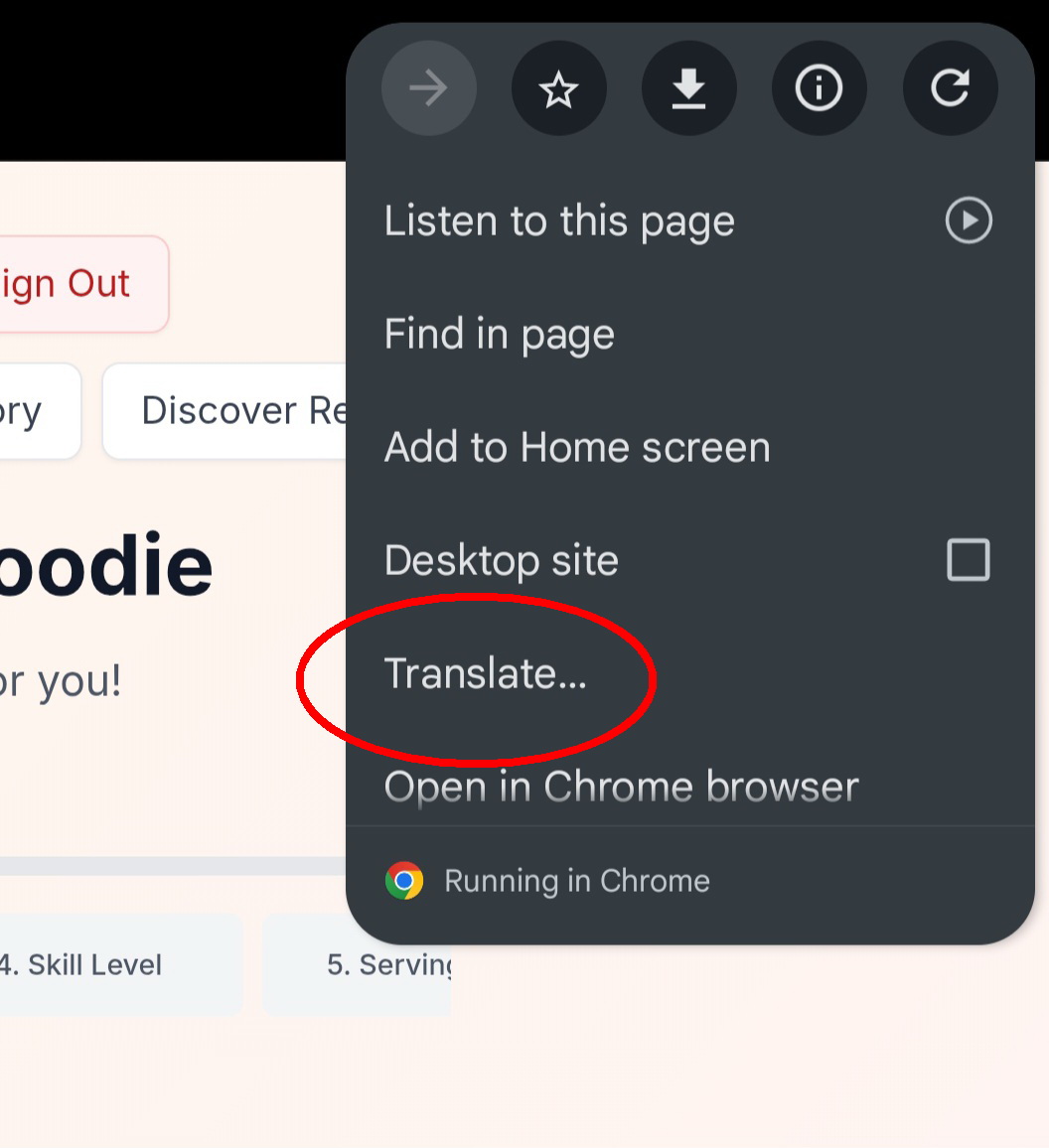
2. Click on "Translate"

Once the menu is open, click on the "Translate" option.
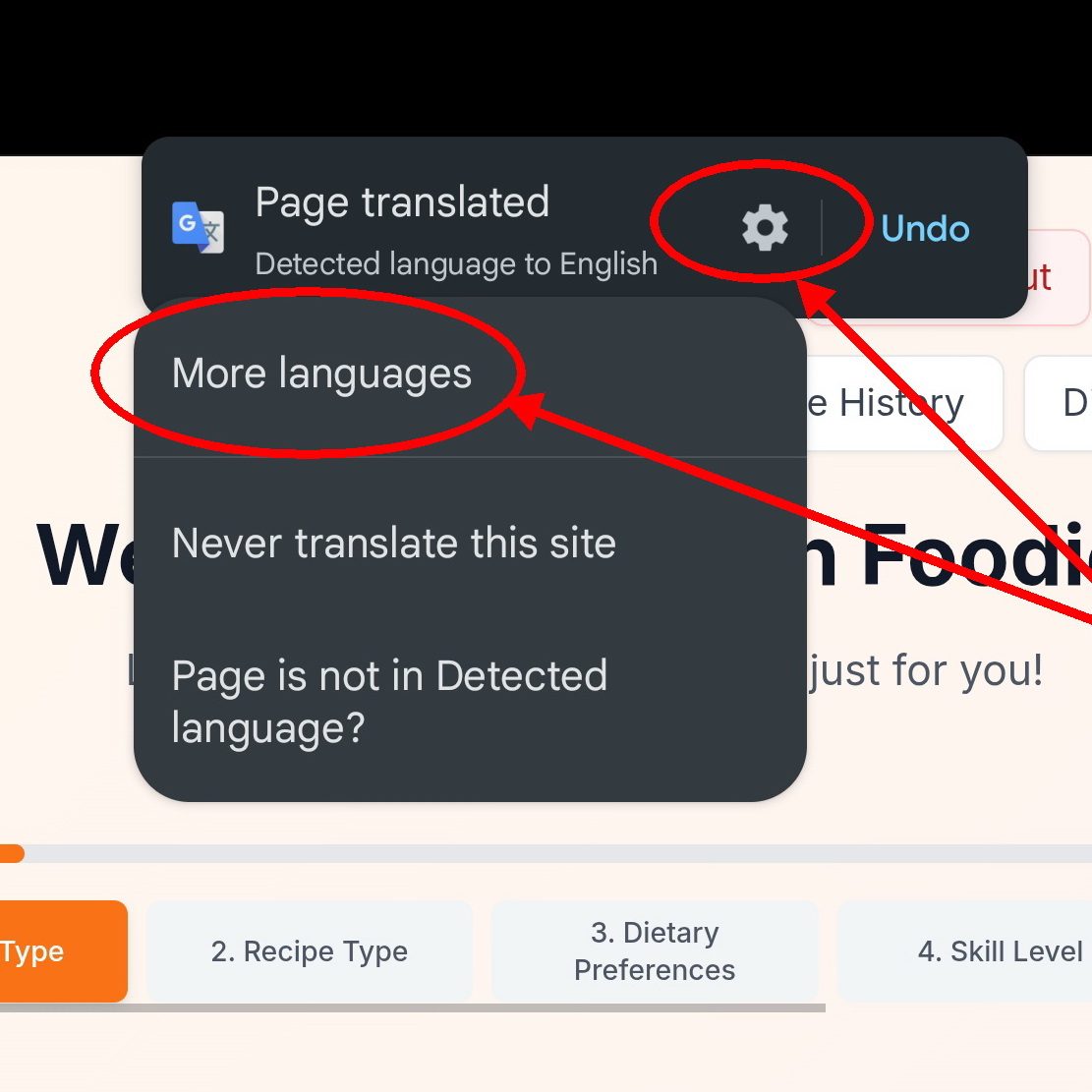
3. Open the Languages Options

Click on the menu cog. Then click on "More Languages" to display the list of languages available to view the Maison Foodie recipe content.
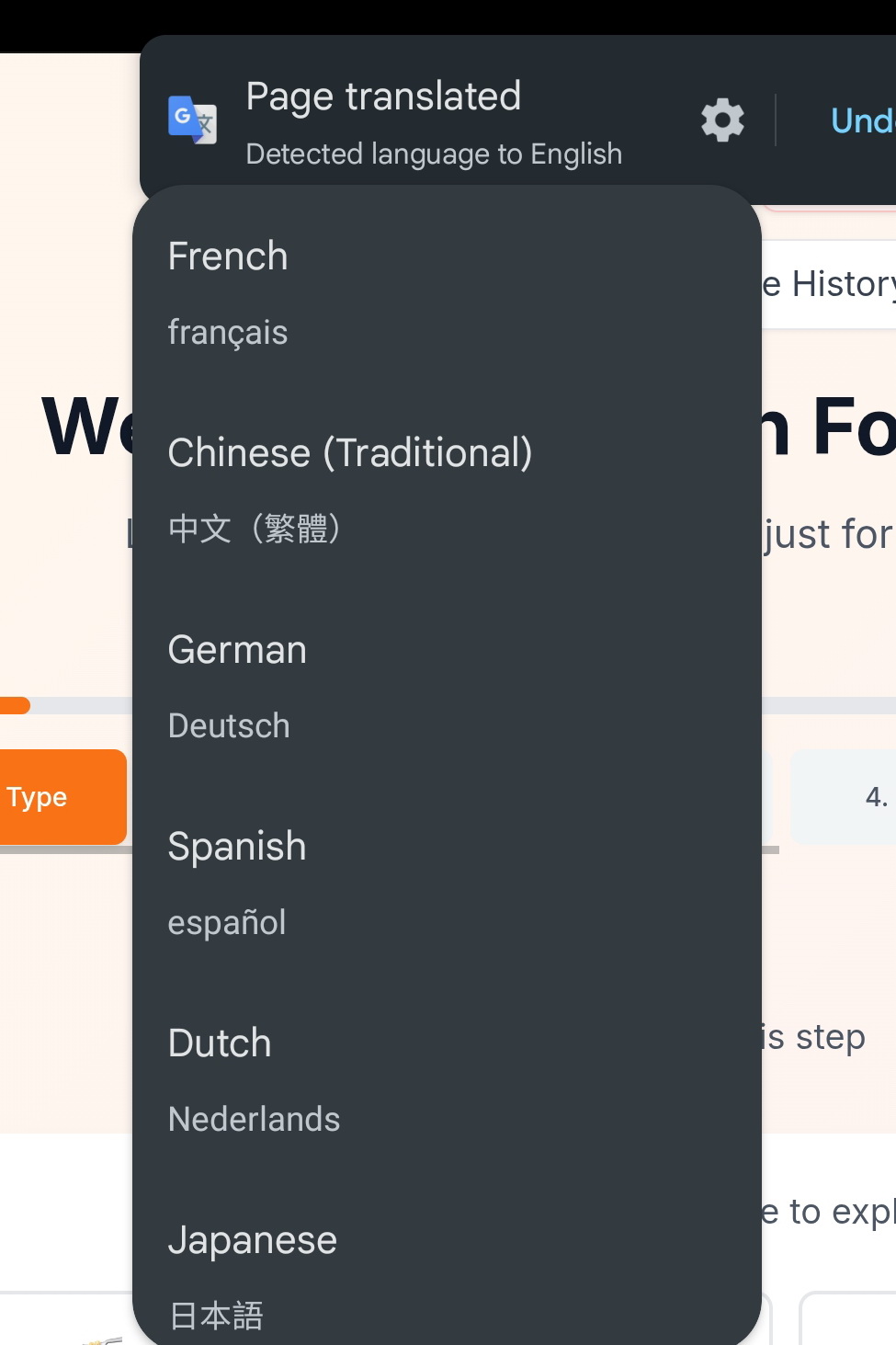
4. Select Your Preferred Langauge

Scroll through the list of languages available to view the Maison Foodie recipe content. Select your preferred language.

Frequently Asked Questions (FAQ)

Click on the “+” below to reveal the answer.

If you register for a Free Maison Foodie Account, you can create up to five (5) recipes per day. Free accounts will only allow up to five (5) recipes to be stored in My Recipe History. Once you have created five (5) recipes with your Free account, you will not be able to create any additional recipes until you remove at least one (1) recipe from your My Recipe History list.

Yes, Maison Foodie is completely free to try! All you need to do is register for a Maison Foodie account with your name and valid email address.

No, recipes that are removed from your My Recipe History are not deleted from the Maison Foodie system. Recipes that are created with Maison Foodie will continue to live in the Maison Foodie online community even if the recipe does not appear in your My Recipe History. You can also search for your recipes by author/creator name or recipe name by visiting the Discover Recipes page at https://app.maisonfoodie.com/recipes/list.

Yes. If you purchase a Maison Foodie subscription, you can cancel your Subscription License at any time. Subscription License cancellation details can be found in the Subscription Terms and Conditions.

Yes, you can downgrade from a Pro Member account to a Free account at any time. Cancelling any Subscription License will result in your Maison Foodie account reverting to a “Free” account. Details on how to cancel your Pro Member Subscription License can be found in the Subscription Terms and Conditions.

If you downgrade your Subscription License from a “Pro” account to a “Free” account (essentially, cancel your Maison Foodie Subscription License), all of the recipes that you have created will continue to be displayed in My Recipe History, however, you will not be able to create any new recipes with Maison Foodie until you have less than five (5) recipes in your My Recipe History list. If you have more than five (5) recipes in your My Recipe History and wish to create more recipes with a Free account, you will need to remove the recipes in your My Recipe History list until you have less than five (5) recipes remaining in your My Recipe History list. If you purchase a Maison Foodie Subscription License, you will be permitted to create recipes again regardless of how many recipes you have in your My Recipe History list.

Yes! The Ten (10) Day Money-Back Guarantee is real and only applies to first time purchases of a Subscription License. Subscription License renewals are not eligible for the Money-Back Guarantee. To qualify for the Money-Back Guarantee, you must cancel your Subscription License within ten (10) days following the initial purchase date of your Subscription License. More details and information on the Money-Back Guarantee can be found in the Subscription Terms and Conditions.

Credit card processing for Maison Foodie Subscription Licenses are being provided by Stripe. You can update your credit card information at any time prior to the next scheduled payment date. To update your credit card information, you will need to log into your Maison Foodie account and click on the “Settings” cog. Click on “Edit Subscription Payment Details” under the “Subscription Management” section. You will be able to update your payment details (“Add” or “Remove” payment method) under this section.

Should you wish to cancel your current Subscription License, you will need to log into your Maison Foodie account and click on the “Settings” cog. Click on “Cancel Subscription” under the “Subscription Management” section. Even though you have cancelled your Subscription License, you will continue to have full access of your Subscription License until the expiration of your then-current license term.

Absolutely! If you are looking to discover or create a recipe for a specfic food or beverage item, you can use any of the recipe creation “Steps” that have the “Custom” text field available, such as in Step #1 (“Cuisine Type”), Step #2 (“Recipe Type”), or Step #3 (“Dietary Preferences”). Simply click on the “Custom” button, enter the name of the food or beverage item, then click “Add”. Click “Next” to move on with the recipe discovery and creation process.